
Utilisation des synonymes
- Activer l'utilisation des synonymes
- Renseigner des synonymes
- Importer des synonymes depuis un dictionnaire
Les synonymes permettent d’améliorer la pertinence et l’efficacité des requêtes dans DigDash. Ils sont principalement utilisés pour les noms de dimensions ou mesures et peuvent être exploités par différentes fonctionnalités :
- Création de graphiques via une requête en langage naturel ou via DigDash Agent
- Assistant de création de tableaux de bord (correspondance avec les tableaux de bord pré-configurés)
Par exemple, pour une mesure nommée CA, on peut renseigner les synonymes Chiffre d’affaires et Revenus. Ainsi, les requêtes :
- « Chiffre d’affaires par région »
- « Revenus par région »
seront interprétées de la même manière que :
- « CA par région »
Les synonymes peuvent être renseignés par l'utilisateur au niveau de l'édition multi-langue du nom d'un élément ou dans le Gestionnaire de traductions, ou bien être importés depuis un dictionnaire des synonymes.
Les synonymes sont disponibles pour toutes les langues configurées.
Afin que les synonymes soient pris en compte lors des requêtes, il est nécessaire d'activer leur utilisation dans les paramètres serveur.
Activer l'utilisation des synonymes
Pour activer l'utilisation des synonymes:
- Rendez vous sur la page Configuration > Paramètres serveur > Dictionnaires & Langues > Dictionnaire des synonymes depuis le menu d'accueil.
- Cochez la case Utiliser les dictionnaires des synonymes pour les requêtes en langage naturel et/ou Utiliser les dictionnaires des synonymes pour l'assistant de création de tableaux de bord.
Renseigner des synonymes
Les synonymes peuvent ajoutés par l'utilisateur de différentes façons.
Depuis l'édition multi-langue
Les synonymes peuvent être ajoutés directement au niveau des propriétés de l'élément en cliquant sur le bouton d'Edition multi-langue  .
.
Dans certains cas, ce bouton est disponible dans une barre d'outils (dans ce cas, il faudra d'abord sélectionner l'objet).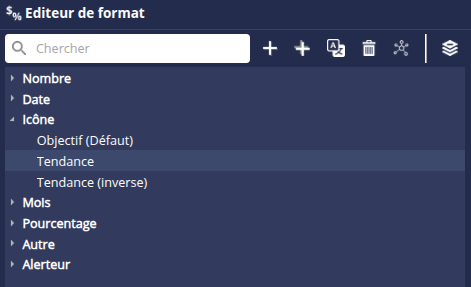
Pour renseigner des synonymes :
Cliquez sur le bouton d'Edition multi-langue
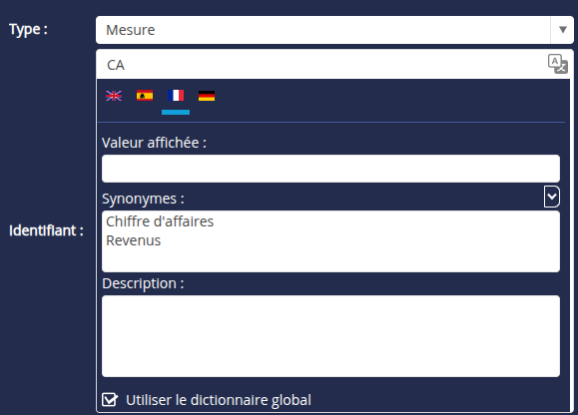
.Dans la boite qui s'affiche, sélectionnez l'onglet de la langue dans laquelle vous souhaitez entrer des synonymes.
Entrez le(s) synonymes dans le champ Synonymes. Si vous souhaitez ajouter plusieurs synonymes, placez chacun d'eux sur une ligne différente.
Cochez la case Utiliser le dictionnaire global si vous souhaitez que le synonyme de l'élément s'applique à l'ensemble des éléments identiques. Le synonyme sera ajouté au dictionnaire et sera donc éditable depuis le gestionnaire de traductions. Consultez la page Gestionnaire des traductions pour plus de détails.
Si la case n'est pas cochée, le synonyme sera personnel à l'objet.
Depuis le Gestionnaire de traductions
- Ouvrez le Gestionnaire de traductions.
- Recherchez l'élément pour lequel vous souhaitez ajouter un synonyme.
- Affichez l'onglet Synonymes puis entrez le(s) synonyme(s) dans la langue de votre choix. Si vous souhaitez ajouter plusieurs synonymes, placez chacun d'eux sur une ligne différente.

- Cliquez sur OK.
Importer des synonymes depuis un dictionnaire
Il est possible de charger un dictionnaire des synonymes et d'importer les synonymes de votre choix parmi ceux proposés.
Consultez la page Dictionnaire des synonymes pour plus de détails.