
Gestionnaire des connexions aux bases de données
Modifié par Aurelie Bertrand le 2026/07/15 11:46
Le Gestionnaire de connexions aux bases de données permet de gérer les connexions aux bases de données ou rapports partagées, dans un rôle ou à tous les rôles.
Ce sont les connexions aux bases de données créées en mode connexion nommée lors de la création d'un nouveau modèle de données ou créées directement dans ce gestionnaire.
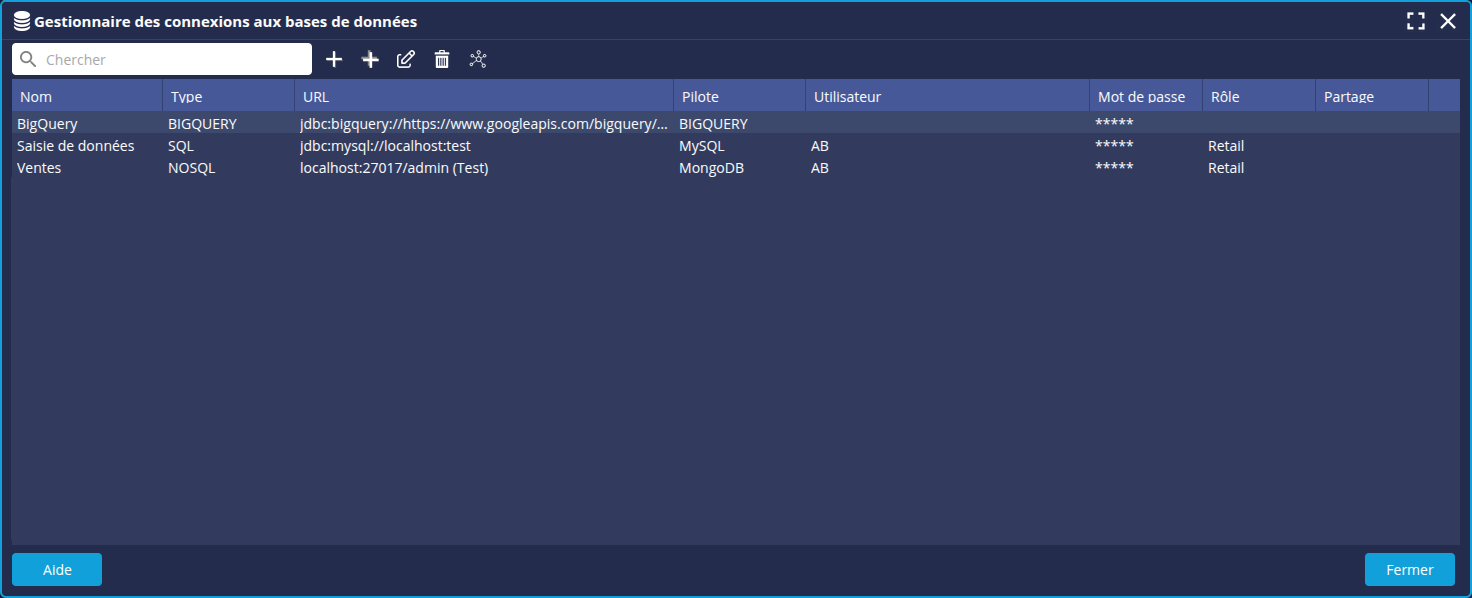
Pour créer une nouvelle connexion base de données :
- Cliquez sur le bouton + à droite de la barre de recherche.
➡ La boite Ajouter une connexion base de données s'affiche - Entrez le nom de votre connexion.
- L'Identifiant est utilisé pour identifier la base de données de manière unique.
- Renseignez les champs spécifiques à la base de données ou le rapport auquel vous souhaitez vous connecter : URL, pilote, Index, etc... Ci-dessous un exemple pour une base de données NoSQL.
- Consultez les informations données pour le Mode connexion manuelle dans la page dédiée à la connexion à la base de données/au rapport pour plus de détails : les liens des pages sont données ci-dessous.
- Dans le champ Utilisateur, entrez le nom de l'utilisateur à utiliser lors de la connexion à la base de données.
- Dans le champ Mot de passe, entrez le mot de passe à utiliser lors de la connexion à la base de données.
- Dans la liste déroulante Rôle, vous pouvez choisir de restreindre l'accès complet à la base de données uniquement à un rôle. Sélectionnez Aucun pour partager la connexion à tous les rôles. Le champ peut également être utilisé comme barre de recherche dans le cas d'un grand nombre de rôles.
- Dans le champ Partager, cliquez sur Sélectionner les rôles autorisés si vous souhaitez restreindre la visibilité de la base de données à une sélection de rôles.
- Cliquez sur Tester la connexion pour obtenir le statut de la connexion (connexion réussie ou échec de la connexion). En cas d'échec, modifier les paramètres de connexion.
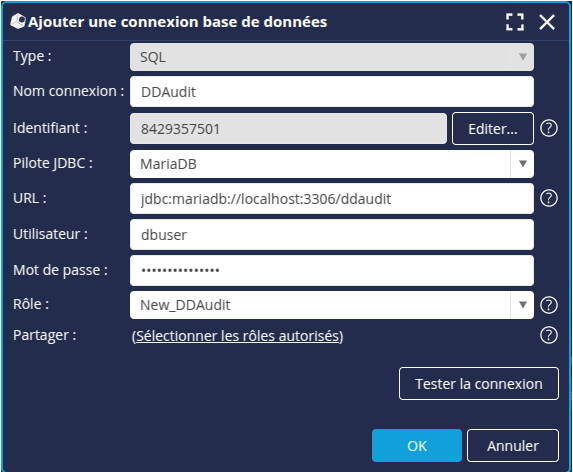
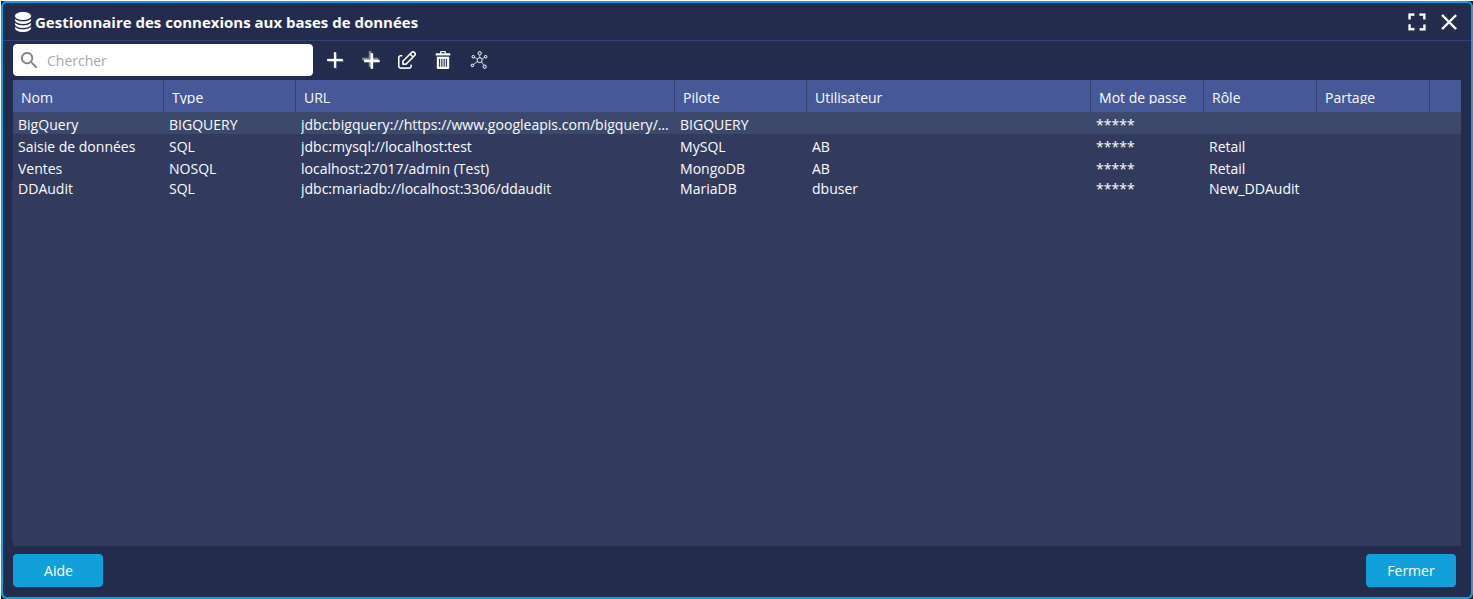
- Cliquez sur OK.
➡ La connexion est ajoutée à la liste.
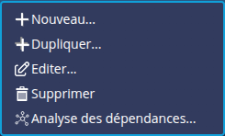
Vous pouvez également :
- Créer une connexion depuis une connexion existante : sélectionnez la connexion à dupliquer puis cliquez sur le bouton
 et modifiez les paramètres comme souhaité.
 - Éditer un connexion : sélectionnez la connexion à éditer puis cliquez sur le bouton
 et modifiez les paramètres comme souhaité.
 - Supprimer une connexion : sélectionnez la connexion à supprimer et cliquez sur le bouton
 .
.
Pour des informations détaillées sur les paramètres de connexion spécifiques à une base données/rapport, consultez les pages dédiées :