
Creating or transforming data using an external executable
The IO (Input/Output) data source allows you to supply data from a source or to transform data from an existing DigDash data model using an external executable (Python script, .bat, .sh, .exe, Talend job, etc.).
Preliminary configuration
To use this data source, you must first configure the path to the executables folder in the digdash.properties file (located in the <DDE Install> directory or /etc/digdash (on Linux) or the custom location you may have configured).
For a per-domain configuration, add the following properties to the file:
- ddenterpriseapi.iods_exe_path andstudio.iods_exe_path for the executables folder (required to use IODS)
- ddenterpriseapi.iods_sandbox_path andstudio.iods_sandbox_path for the sandbox path (optional)
For example:
ddenterpriseapi.iods_exe_path=/etc/digdash/executables
studio.iods_exe_path=/etc/digdash/executables
#ddenterpriseapi.iods_sandbox_path=/etc/digdash/bwrap.sh
#studio.iods_sandbox_path=/etc/digdash/bwrap.sh
If you have other domains, add the properties for each of these domains.
For example:
ddenterpriseapi_dev.iods_exe_path=/etc/digdash/executables_for_dev_domain
studio_dev.iods_exe_path=/etc/digdash/executables_for_dev_domain
For a global configuration (which applies to all web apps except those with domain-specific configurations), add the following properties to the file:
- digdash.iods_exe_path for the executables folder (required to use IODS)
- digdash.iods_sandbox_path for the sandbox path (optional)
For example:
digdash.iods_exe_path=/etc/digdash/executables
digdash.iods_sandbox_path=#ddenterpriseapi.iods_sandbox_path=/etc/digdash/bwrap.sh
Data generation / transformation
Once the path to the executables folder has been configured, you can generate data or transform data from another data model.
Generating data also involves retrieving data from a source and making it usable by DigDash.
- In the ‘Create a new data model’ dialogue box, click the ‘IO datasource’ button in the ‘Transformers’ section.
The ‘Generate data or transform data from another data model’ dialogue box appears . - If you wish to transform data from a data model: in the Data Models section, click Select to choose the data model to be transformed.
If you wish to generate data, leave the field blank. - From the Executable drop-down list, select the executable to run. The available executables are those located in the executables folder configured previously.
- In the Arguments field, you can specify arguments to pass to the executable. For example, the name of the database from which the data is to be retrieved.
- Click the Load button to load the data and display it in the Preview section.

Advanced options
In the Data Selection section, click the Advanced button to access the Advanced Options for data selection.
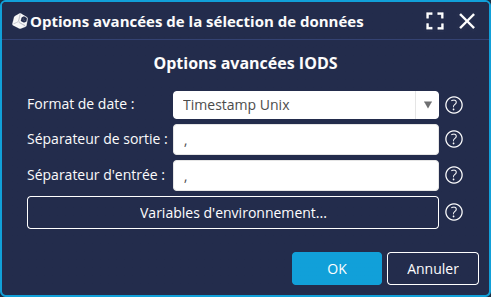
| Date Format | Select the format for values in Date-type dimensions from the source data model for sending CSV data to the executable during data transformation. |
|---|---|
| Output separator | Specify the CSV separator to be used when sending data from the selected data model to the executable during a data transformation. |
| Input Separator | Specify the CSV separator used by the executable when writing generated or transformed data. |
| Environment variables | Click the button to define environment variables that will be passed to the executable by this data source when it runs. |