
Authorisations (ACL)
- DigDash Enterprise administration authorizations
- Content publishing authorizations (document server)
- Flow refresh authorizations
- Information wallet authorizations
- Studio authorizations
- Dashboard authorizations
- Flow viewing authorizations
Authorizations are grouped into 7 sections according to their influence on DigDash Enterprise.
Further information is available in the :
- to which DigDash module each Authorisation applies
- to which authorisation group it belongs
- whether it can be assigned by role
- whether it is deactivated for a user with an OEM license.
DigDash Enterprise administration authorizations
Admin > Add a new role
Users can create a new role from the Configuration > User Management > Roles page.
Admin > Allow Impersonate
Users can create an authentication token for another user (when integrating DigDash into external processes).
Admin > Edit user attributes
Users can edit a user's attributes as well as create and delete a user from the Configuration > User Management page (requires Admin > Manage Users).
Admin > Edit user parameters
Users can edit user parameters to add specific information about the user in the Configuration > User Management page (requires Admin > Manage Users).
Admin > Edit protected user parameters
Users can edit protected user parameters (user parameter for which the Protected user parameter box is checked) in the Configuration > User management page (Admin > Manage users).
Admin > Export users
Users can download a CSV file containing a list of all users and their attributes from the Configuration > User Management page (requires Admin > Manage Users).
Admin > Manage license
Users can enter the license key they have been issued. They can also add or remove users to the license.
This authorization allows access to the Configuration > Manage Licences page .
Admin > Manage authorizations
Users can assign/remove authorizations to a user on the Configuration > Manage Users page (requires Admin > Manage Users).
Admin > Manage users content
Users can add documents to the document server. They can also update existing documents on the server and delete them.
This authorization allows access to the Configuration > Document Management page .
Admin > Manage authorization groups
Users can assign/remove authorization groups to a user from the Configuration > Manage Users page (requires Admin > Manage Users).
Admin > Manage user profiles
Users can create, edit and delete user profiles in the Configuration > User Management page (requires Admin > Manage Users).
Admin > Manage server settings
Users can view and modify DigDash Enterprise server settings (Enterprise server, LDAP server,...).
This authorization allows access to the Configuration > Server Settings pages in management mode.
Admin > Manage Users
Users can view users and roles. They can only manage the roles to which they are attached and to which they have write access.
This authorization is used to access the Configuration > User Management page.
Admin -> Manage all forms
Users can edit secure forms, in particular to correct an invalid JSON Logic problem.
Admin > Manage role
Users can manage the roles for which they have authorization.
Admin > Manage all roles
Users can manage all roles in the Configuration > User Management page (requires Admin > Manage Users), including those to which they are not attached. Without this authorization, users can only manage roles to which they are attached and to which they have write access.
Admin > Import users
Users can upload an Excel or CSV file containing a list of users and their attributes from the Configuration > Manage Users page (requires Admin > Manage Users).
Admin > Restore Configuration
Admin > Backup Configuration
Users can back up or restore the DigDash Enterprise configuration.
This permission allows access to the Configuration > Backup Management > Backup or Configuration > Backup Management > Restore page.
Admin > Download DigDash Metadata Service packages
Users can download various types of add-ons and downloadable data provided by DigDash via the DigDash Metadata Service Manager.
Admin > View server status
Users can view the status of the server (memory, connected sessions, refreshing, etc.).
This authorization allows access to the Configuration > Server Status page in management mode.
Admin > View all users info
Users can view information for all users.
This authorization is used to access the dashboard pages available to a user via an API.
Content publishing authorizations (document server)
Content > Remove or update a document
Content > Upload a document
Depending on the authorization granted, the user can add, delete or update documents.
These authorizations allow access to the following elements:
- From the dashboard : If the user has the Upload a document authorization, they can add a new document to the server from a Documents portlet (Add a document button).
If the user also has the Remove or Update document authorization, they can add an existing document to the server in order to update it (Add Document button) or delete a document.
If the user does not have the Upload document permission, the Add Document button is not present in the Documents portlet.
- From the Studio : If the user has the Upload a document authorization, they can add a new document to the server when creating a data source (Add a file to the server button).
If the user also has the Remove or update a document authorization, they can add an existing document to the server in order to update it (Add a file to the server button) or delete a document.
If the user does not have the Upload a document permission, the Add a file to the server button is greyed out.
Content > List document servers
Content > List documents
Depending on the permission granted, the user can display the list of file servers or the list of files.
- From the Studio: select a file server / a file when creating a data model (depending on authorisation)
- From the File Server Manager : display the list of file servers (List document servers)
- From the File Manager: display the list of files (List documents)
- From the Dashboard Creation Wizard: list of file servers and files when the data source is selected.
- From the Dashboard Editor : selection of a file server for additional content of the Documents type (List document servers)
- From the Dashboard : search for documents from a Documents portlet (List documents)
Flow refresh authorizations
Scheduler > Schedule refresh
Users can schedule how often an information wallet or data model is refreshed.
This authorization allows access to the following:
- From the Studio :
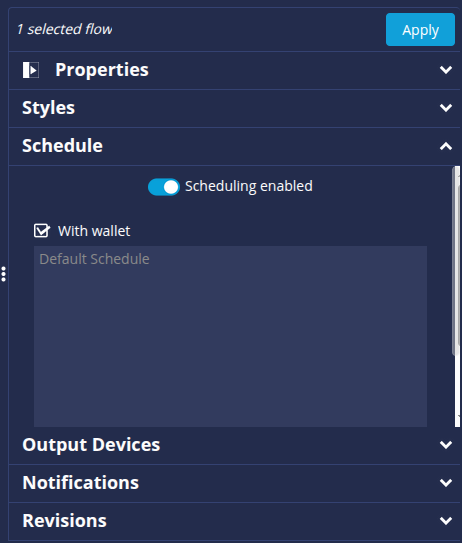
- Scheduling of flows and wallets: After selecting the wallet or the flow, add a schedule from the Schedule tab in the properties panel.
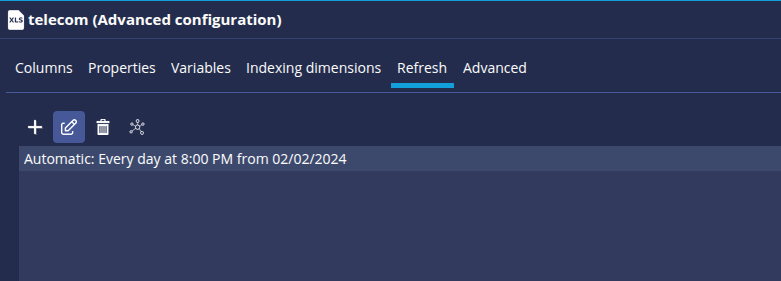
- Programming data models: After editing the data model, add a schedule from the Refresh tab :
- Scheduling of flows and wallets: After selecting the wallet or the flow, add a schedule from the Schedule tab in the properties panel.
Information wallet authorizations
Wallet > Add a Flow
Users can add a Flow to their personal information wallet in the Studio.
Wallet > Add Role Flow
Users can add an information flow to a role's information wallet if they have write permission for that role. This authorization allows access to the following:
- From the Studio : Add a Flow to the user's role wallet
- From the Dashboard : Add an information flow to a role's wallet from a Data Query window. The user must also have the Wallet > Save role flow permission.
Wallet > Load wallet for a role
Users can open role wallets.
Wallet > Refresh flow
Users can refresh the flows in their personal information wallet.
This authorization gives access to the Refresh history, Clear history, Synchronize and Synchronize for all users commands in the context menu of a flow in the Studio.
Wallet > Refresh role flow
Users can refresh information flows created for roles (users must also have the Wallet > Load wallet for a role authorization), if they have refresh rights on that role.
This authorization allows access to the Refresh History, Clear History, Synchronize and Synchronize commands for all users in the context menu of a flow in the Studio.
Wallet > Save wallet for a role
Users can edit wallets created for roles.
This authorization allows access to the following:
- From the Studio:
- Add a Flow to a role's wallet (the user must also have the Wallet > Add role flow authorization)
- Edit existing flows in a role's wallet (click on the flow then edit the flow from the Properties panel)
- Copy/Paste flows into a role wallet.
- Moving flows within a role wallet.
- Modify wallet parameters (right-click on the wallet, then modify the name or scheduled refreshes).
- From the dashboard : Add an information flow to a role's wallet from a Data Query portlet (the user must also have the Wallet > Add role flow authorisation).
Studio authorizations
Studio > Access device manager
Users can manage the list of devices in use.
This authorization allows access to the following items from the Studio:
- Device Manager from the Managers button
- Device configuration from the Devices tab in the information flows
Studio > Access format manager
Users can manage the list of formats.
This authorization allows access to the following from the Studio:
- Format manager from the Managers button
- Format management from the editing of data models and Flow display parameters
Studio > Access map manager
Users can manage the list of maps in use.
This authorization gives access to the Map Manager from the Managers button in the Studio.
Studio > Access database connection manager
Users can manage the list of connections.
This authorization allows access to the following items from the Studio:
- Database connection manager from the Managers button
- Add a named connection when connecting to SQL, BigQuery, SnowFlake, OLAP, NoSQL, ElasticSearch, Business Objects, Salesforce and Splunk data sources.
Studio > Access predefined function manager
Users can manage the list of predefined functions in use.
This authorization allows access to the following items from the Studio :
- Predefined functions manager from the Managers button
- Management of predefined functions from the editing of data models and Flow display parameters
Studio > Access D3 charts manager
Users can manage the list of D3 templates in use.
This authorization allows access to the D3 template manager from the Managers button in the Studio.
Studio > Access hierarchy manager
Users can manage the list of hierarchies.
This authorization allows access to the following items from the Studio:
- Hierarchy editor from the Managers button
- Hierarchy management from data model editing
Studio > Access icon manager
Users can manage icons.
This authorization allows access to the following items from the Studio:
- Icon manager from the Managers button
- Icon management from format editing (accessible when editing data models and Flow display parameters)
Studio > Access color palette manager
Users can manage the list of color palettes.
This authorization gives access to the following items from the Studio :
- Color Palette Manager from the Managers button.
- Manage color palettes from the Flow view settings editor.
Studio > Access sentences manager
Users can manage the sentences used by Flows for their textual representation.
This authorization gives access to the following elements from the Studio:
- Sentences manager from the Managers button .
- Sentences Manager from Text Generation Configuration (Text or Audio/Video Generation Flow).
Studio > Access to the schedule manager
Users can manage the list of schedules.
This authorisation allows access to the Refresh Manager from the Managers button in the Studio.
Studio > Access scripts manager
Users can manage script libraries.
This authorization allows access to the following items from the Studio:
- Scripts libraries manager from the Managers button.
- Management of script libraries from the editing of measurements derived from a data model.
Studio > Access styles manager
Users can manage the list of styles.
This authorization gives access to the following items from the Studio:
- Styles > Theme wizard from the Managers button.
- Style management from the flow view settings.
Studio > Access to translation manager
Users can manage translations.
This authorization gives access to the following elements from the Studio:
- Translation manager from the Managers button.
- Manage translations of all the metadata used (names of dimensions and measurements, names of hierarchies, etc.).
Studio > Access to Studio
Users can access the Studio to create data models and flows.
Studio > Dependency analysis
Users can access the dependency analysis
This authorization allows access to the following elements from the Studio:
- Dependency analysis from the Managers button.
- Dependency analysis in the various managers, from a Flow and a template (Studio home page), when connecting to the data catalogue.
Studio > Edit datasource
Users can edit their personal data models.
This authorization gives access to the following from the Studio:
- Add, modify and delete a data model from the data model management panel.
- Modify or create a data model from a user's Flow edit.
This authorization only affects user data models, as role data models are managed by the Studio > Edit datasource for a role authorization.
💡For all the following Edit a <type> data source authorization, if the user does not have the necessary authorization, the button corresponding to the data source will be greyed out in the Studio's Create New Data Model window.
Studio > Edit a database data source
Users can create/edit a data model using a database data source: DB (wizard), SQL, BigQuery, SnowFlake, OLAP, NoSQL, Elastic Search, Google Analytics, Salesforce, Splunk, SAP Hana and SAP BeX.
Studio > Edit a data catalog data source
Users can create/edit a data model using a data catalog data source.
Studio > Edit a file data source
Users can create/edit a data model using a file data source: Excel (XLS, XLSX), CSV, FTXT, HTML, MDB (access) and JSON.
Studio > Edit an IO data source
Users can create/edit a data model using an IO data source.
Studio > Edit a join data source
Users can create/edit a data model using a join data source.
Studio > Edit a report data source
Users can create/edit a data model using a report data source: BO XLS, BO CSV, BO HTML, Cognos XML, Cognos (portal), BIRT HTML and Sharepoint.
Studio > Edit a column transformer data source
Users can create/edit a data model using a column transformer data source.
Studio > Edit a transformer data source
Users can create/edit a data model using a data transformer data source.
Studio > Edit a union data source
Users can create/edit a data model using a data transformer data source.
Studio > Edit datasource for a role
Users can edit data models created for roles.
This authorisation allows access to the following from the Studio:
- Add, modify and delete a role data model from the data model management panel.
- Edit or create a role data model from a user's Flow edit.
Studio > Manage common items
Users can create, edit and delete items shared by all roles (database connections, colour palettes, predefined functions, formats, hierarchies, programming, servers, styles) from the Studio.
Studio > Manage role items
Users can create, edit and delete role-restricted items (database connections, colour palettes, predefined functions, formats, hierarchies, programming, servers, styles) from the Studio.
Studio > Ignore data model and flow revision notes
Users can override the requirement to enter revision notes when editing a data model or Flow from within the Studio. Without this authorization, users are forced to enter a non-empty revision note each time they edit a data model or flow.
Dashboard authorizations
Dashboard > Access Dashboard Assistant
Users can access the Dashboard Creation Assistant.
Dashboard > View dashboard
Users can view their personal dashboards and those of their roles.
Dashboard > Add data via a form
Users can access forms and enter data.
Dashboard > Create form
Users can create a data entry form.
Dashboard > Protect dashboard pages
From the dashboard editor, you can protect the editing of role pages by selecting Yes in the Protection field in the Advanced settings section.
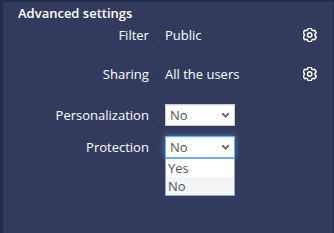
Users with the "Dashboard > Edit protected dashboard pages" authorization can edit a protected role page.
Dashboard > Edit dashboard
Users can create and edit their own personal dashboards.
This authorization allows access to the "Dashboard Editor" page from the DigDash Enterprise home page.
This authorization does not allow editing of dashboards created for the user's roles (managed by the "Dashboard > Edit Role Dashboard" permission).
Dashboard > Edit dashboard for a role
Users can create and edit dashboards for roles.
This authorization allows access to the "Dashboard Editor" page from the DigDash Enterprise home page.
Dashboard > Manage form data
Users can manage data: edit or delete form data.
Dashboard > Dashboard navigation menu
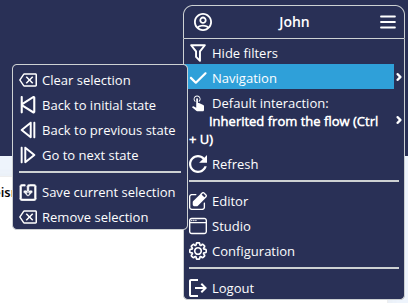
Users can save the current navigation state of a dashboard.
This authorization enables access to the Navigation menu, from the Dashboard hamburger menu, which enables filters to be removed, the previous and next navigation states to be displayed and the current state to be saved.
Dashboard > Dashboard customization
This authorization allows access to the following elements from the dashboard editor:
- Modify styles from the Theme Editor menu
- Add JavaScript from the JavaScript Editor menu
- Saving images in public mode (accessible to all users) from the Image management menu. If the user does not have this authorisation, they can save images for themselves or for their roles only.
Dashboard > Send a mail
This authorization enables an email to be sent when sending an email when a form is submitted is configured.
See the paragraph Configuring the sending of an email for more details.
Flow viewing authorizations
View > Add comment to flow
View > Add a comment to data model
Depending on the authorization selected, users can add comments to data models and/or information flows.
These authorizations give access, in the dashboard, to adding a comment from the Add comment menu appearing on the information flows.
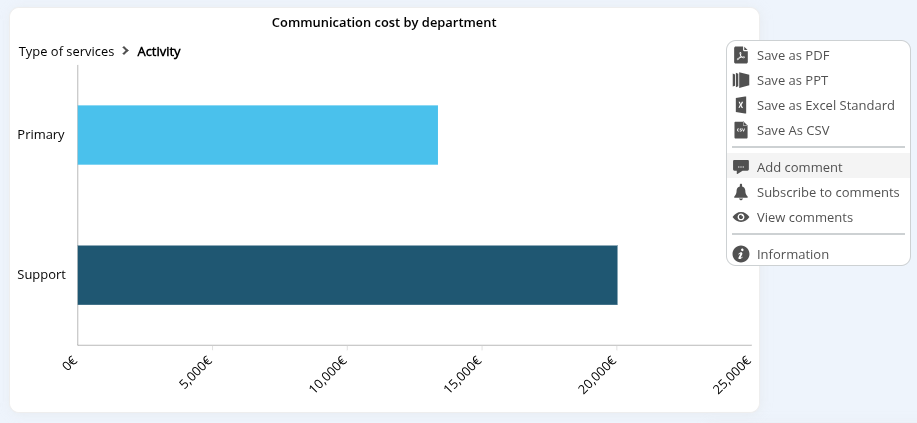
Comments can be added to the data model or the Flow (depending on the user's permissions).
If the user has both permissions ("View > Add comment to data model" and "View > Add comment to Flow"), the comment is added to the data model by default. The user must select the Only on this chart check box for the comment to be added to the Flow.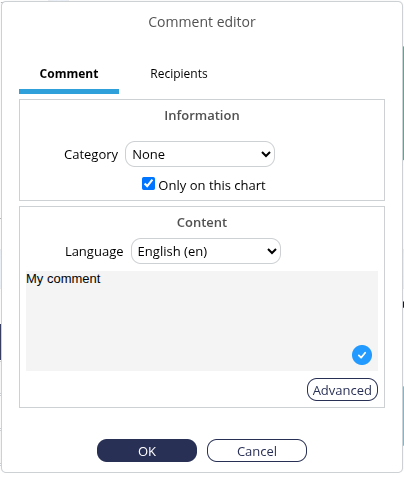
View > Send SMS
From the dashboard editor, the user can send a text message indicating the URL of the dashboard on a mobile device.
The button for sending this SMS will only appear if the SMS configuration defined on the Server Settings page is valid.
View > Navigate a chart
Users can navigate through the data displayed in the Flows on their dashboards.
This authorization allows access to the following elements from the dashboard:
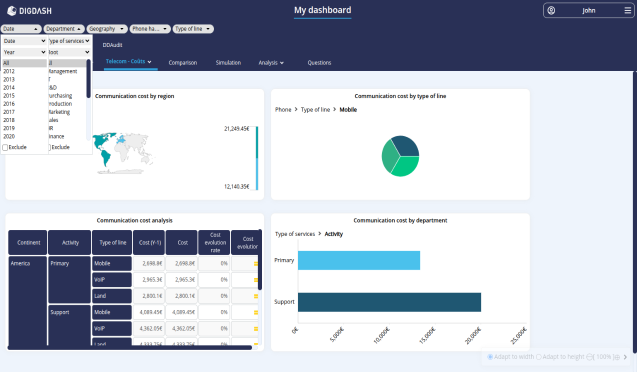
- Filtering of values displayed in diagrams from the interactive filter bar displayed at the top of the page (if the user does not have this authorization, the filter boxes are not displayed).
- Interactive filtering from the windows displaying the dimension values (if the user does not have this authorization, the dimension windows display an error).
View > Search in cubes
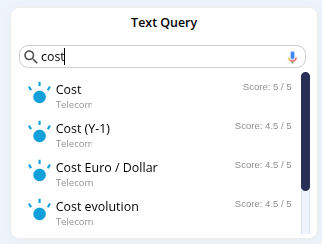
Users can perform data queries from the dashboard (the dashboard must include the Text Query object).
View > Save as CSV
View > Save as PDF
View > Save as PPT
View > Save as XLS standard
View > Save as XLS fast
Users can save the elements of their dashboards in the authorized formats: PDF, PPT, Excel (standard or fast for tables) or CSV.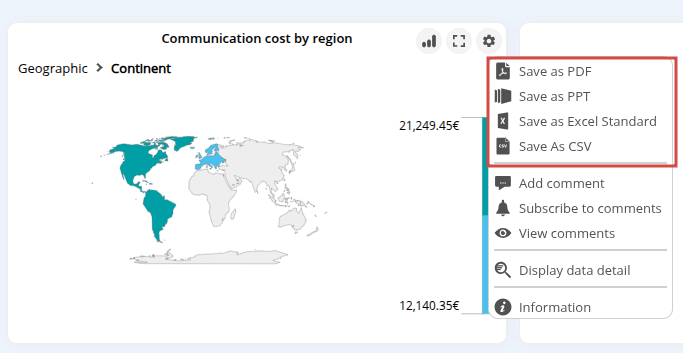
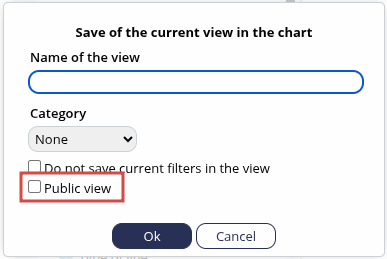
View > Save view
Users can save the current view of their Flow when performing an ad-hoc analysis in the dashboard.

View > Save public view
Users can save the current view of their Flow as a public view when they perform an ad-hoc analysis in the dashboard.
View > Remove flow comment
View > Remove data model comment
Users can delete a Flow or data model comment from the View comments box in the dashboard (users must also have View > View comments authorization).
View > Use ad-hoc analysis
Users can use the ad-hoc analysis tool to modify their Flows in real time from the dashboard. Ad-hoc analysis must be activated on Flows when editing the Flow in the Studio.
View > View restricted access dimensions
Users can view dimensions for which the Restrict access to dimension option has been tchecked in the advanced dimension options in the Studio.
View > View comments
View > View all comments
Users can view the comments of the selection, or all the comments, from the dashboard.