
Managing authorisation groups
- Creating an authorisation group
- Editing an authorisation group
- Deleting an authorisation group
- Viewing the members of an authorisation group
The Authorisation Groups tab lets you create, search for, edit and delete authorisation groups.
Authorisation groups allow you to define, for each user and each role, a set of 'rights' (or authorisations) for using DigDash features such as Add a Flow or View a Dashboard.
This means you can simply assign the same authorisations to several users or several roles. See section Creating a user for more details.
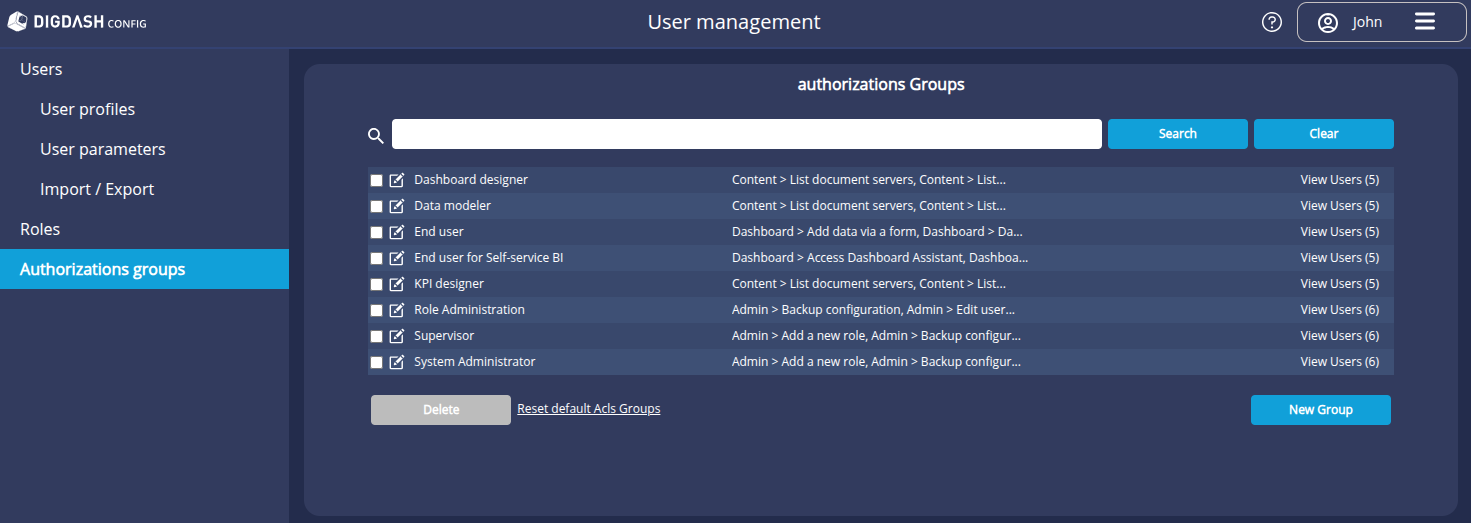
A set of permission groups are provided by default:
| System Administrator | Users in this group have permissions to manage servers, users, licences and documents. |
|---|---|
| Role Administration | Users in this group have permissions to view users, manage user settings, roles and documents: add a role, submit a document, etc. |
| Indicator designer | Users in this group have permissions to create indicators: add a flow, refresh a flow, create a (graphical) flow, etc. |
| Data model designer | Users in this group have permissions to create data models: add a Flow, add and refresh a data source, etc. |
| Dashboard Designer | Users in this group have permissions to create dashboards: add a Flow, refresh a Flow, edit a dashboard, customise a dashboard, etc. |
| Supervisor | Users in this group have access to all DigDash Enterprise features with the exception of the Allow Identity Borrowing permission. |
| End User | Users in this group have permissions to use a dashboard: view a dashboard, save as PDF, use ad-hoc analysis, etc. |
| End user for Self-service BI | Users in this group have the permissions to be autonomous in creating and using a dashboard: accessing the dashboard wizard, editing a dashboard, using ad-hoc analysis, etc. |
The list of authorisations for the groups provided by default is described in the following pages List of authorisations and Authorisations (ACL).
Creating an authorisation group
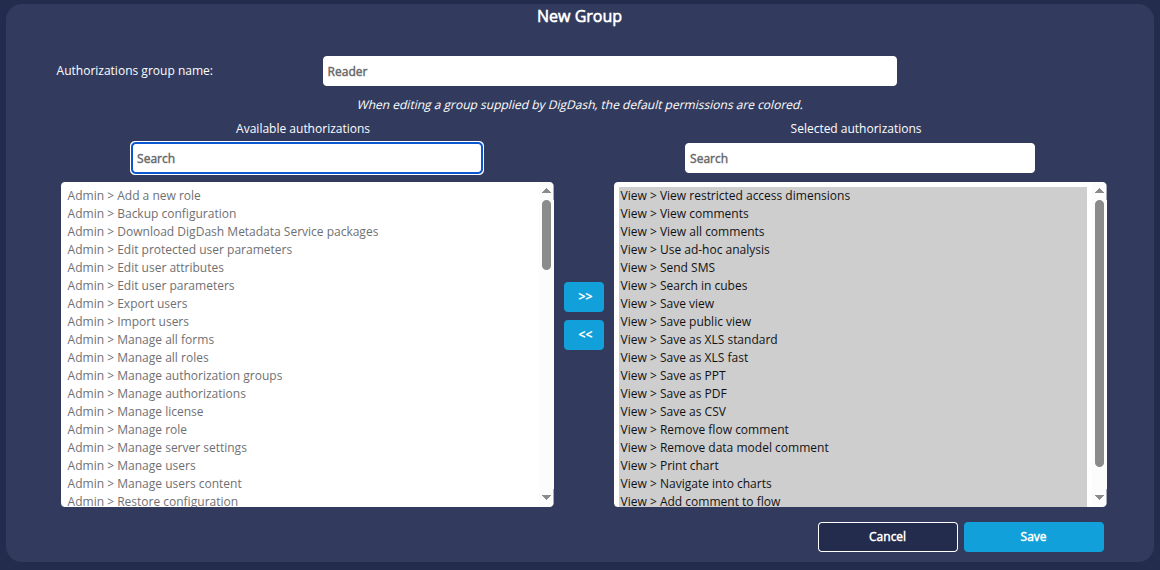
If the groups provided do not meet your requirements, you can create a custom authorisation group. To do this:
- Click the New Group button.
➡ The New Group window appears. - Enter the desired Name for the new group.
- Select the desired authorisations from the Available authorizations list and click the
 button to add them to the Selected authorizations list.
Perform the reverse operation to remove permissions from the group.
You can use the search bar to quickly find the desired permission. - Click Save.
Editing an authorisation group
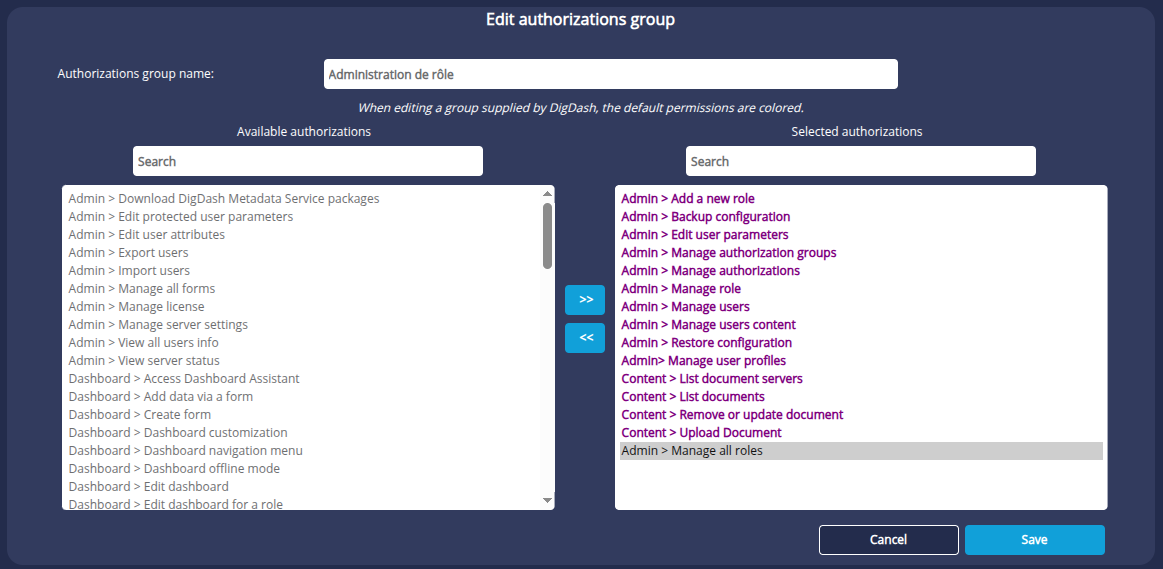
To edit an authorisation group :
- Click on the
 button in front of the group name.
 - In the edit panel that appears, change the name or permissions as required and then click Save.
➡ A dialog box summarising the changes you have made appears. - Click OK to confirm your changes.
In the case of editing a group of permissions delivered by Digdash, the permissions included by default are coloured purple.
Deleting an authorisation group
To delete one or more authorisation groups, select the corresponding checkbox(es) and click the Delete button.
Viewing the members of an authorisation group
The number of users in the authorisation group is shown in brackets to the right of View users in the list of authorisation groups. Click on the corresponding link to display the users with the authorisation group directly in the Users section.