
Configuring a password policy
This document describes how to set up a password policy.
The password policy is set in two places:
- The protection and lifecycle policies, and some of the password quality constraints are defined directly in the LDAP supported as standard (OpenLDAP 2.0+).
- The password quality rules (syntax) are defined in a DigDash Enterprise configuration file.
We recommend using Apache Directory Studio for LDAP configuration.
Accessing the LDAP password policy
The password policy in LDAP uses an LDAP interceptor. To configure it, you need to connect to LDAP using Apache Directory Studio, with an LDAP admin user.
Once connected, unfold the following nodes (see screenshot for more details):
- ou=config
- ads-directoryServiceId=default
- or=interceptors
- ads-interceptorId=authenticationInterceptor
- or=passwordPolicies
- ads-pwdId=default
- or=passwordPolicies
- ads-interceptorId=authenticationInterceptor
- or=interceptors
- ads-directoryServiceId=default
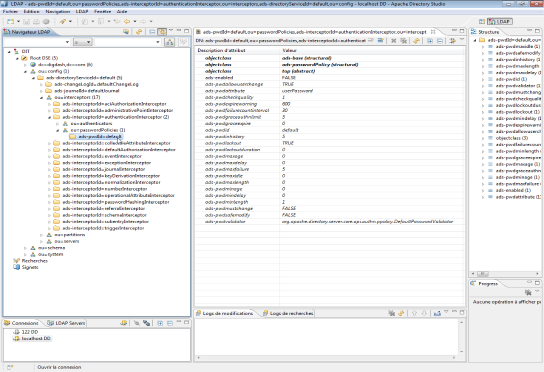
Description of main attributes
The following table describes the main attributes that can be used to configure a password policy in Apache Directory Server :
| Function | Attribute | Type | Default value | Description |
| Protection | Password protection in the event of attacks. Locks the password after a certain number of failed connection attempts. | |||
| ads-pwdlockout | Boolean | TRUE | TRUE: Enables the password lockout function FALSE: Disables the password lockout function | |
| ads-pwdlockoutduration | Integer (seconds) | 0 | Determines the lockout time in the event of unsuccessful password entry attempts. 0: infinite lockout: an LDAP administrator will have to unlock the password. | |
| ads-pwdfailurecountinterval | Integer (seconds) | 30 | Determines the time taken to purge the counter of unsuccessful attempts. | |
| ads-pwdmaxfailure | Integer | 5 | If the password lockout function is enabled (ads-pwdlockout = TRUE), this attribute determines the number of successive failures that will lock the password. | |
| Quality | Password quality rules Note: By default DigDash Enterprise stores passwords in LDAP in a "hashed" format. As a result, LDAP does not have the original password entered by the user and cannot check its quality. This control is carried out directly in DigDash (see next chapter in this document). The following attributes are documented in case this default behaviour is changed. Some of them are used anyway (e.g. history). | |||
| ads-pwdcheckquality | Integer | 1 | Type of password quality : 0 : Password quality is not checked. 1 : Quality is checked if possible (not hashed). If the password is hashed, or in a form that cannot be evaluated, the password is accepted. 2 : Quality is always checked. If the password is hashed or in a form that cannot be evaluated, the password is rejected. Note: Password quality control is performed in DigDash Enterprise. The value of this attribute should be left at 0 or 1. | |
| ads-pwdinhistory | Integer | 5 | LDAP can keep a history of the passwords used for a user. This attribute determines the number of entries in this history. | |
| ads-pwdminage | Integer (seconds) | 0 | If the password history is active, this attribute determines the minimum delay between 2 password changes. | |
| ads-pwdminlength | Integer (characters) | 1 | This attribute determines the minimum length of the password in characters. Note: Password quality control is performed in DigDash Enterprise. The value of this attribute should be left at 1. | |
| ads-pwdmaxlength | Integer (characters) | 0 | This attribute determines the maximum length of the password in characters. Note: Password quality control is performed in DigDash Enterprise. The value of this attribute should be left at 0. | |
| Lifecycle | Password life cycle management. | |||
| ads-pwdallowuserchange | Boolean | TRUE | TRUE : The user can change their password. FALSE : The user cannot change their password. | |
| ads-pwdexpirewarning | Integer (seconds) | 600 | Determines whether the LDAP server should send a warning if a password expiry occurs within the specified time. | |
| ads-pwdgraceauthnlimit | Integer | 5 | If the password expires, this attribute determines the number of times the user will still be able to use it before it finally expires. Note: DigDash Enteprise consumes a token from this counter to change the password. You should therefore add 1 to this value to reflect the actual number of attempts you wish to allow: if ads-pwdgraceauthnlimit = 6, this corresponds to 5 actual attempts by the user. Warning messages take this offset into account. | |
| ads-pwdgraceexpire | Integer (seconds) | 0 | If the password expires, this attribute determines how long the user will still be able to use this password before it expires. 0: no delay | |
| ads-pwdmaxage | Integer (seconds) | 0 | Length of time before the password expires. 0: the password never expires. | |
| ads-pwdmaxidle | Integer (seconds) | 0 | Maximum inactivity time for the password. Once this time has elapsed, the password expires. | |
| ads-pwdmustchange | Boolean | FALSE | TRUE : the password must be changed. | |
| ads-pwdsafemodify | Boolean | FALSE | To change the password. TRUE : The user must enter their current password before the change is made. FALSE : User does not need to enter current password before change. Note: DigDash Enterprise already forces the current password to be entered before it is changed. This setting should remain FALSE. | |
| Other | Other advanced and/or unsupported features | |||
| ads-pwdmindelay | Integer | 0 | Not supported | |
| ads-pwdmaxdelay | Integer | 0 | Not supported | |
| ads-pwdattribute | String | userPassword | Name of the attribute where the password is stored in the LDAP. Note: Changing this parameter is not recommended in DigDash Enterprise. | |
Configuring password quality (specific to Digdash Enterprise)
By default, DigDash Enterprise stores user passwords in a "hashed" form in LDAP. As a result, LDAP does not have the original password entered by the user and cannot check its quality. This control is performed directly in DigDash Enterprise.
This chapter describes how to configure password constraints.
Password quality rules are defined in the passwordpolicyrepository.xml file.
A default file is provided and is located in the ddenterpriseapi web application but it is not advisable to change it in this location unless the changes will be lost the next time the tool is upgraded.
To change the default rules, the simplest procedure is :
- Copy the default file located at the following location:
<DD Install>/apache-tomcat/webapps/ddenterpriseapi/WEB-INF/ classes/resources/config/passwordpolicyrepository.xml
to the following location:
<user>/Application Data/Enterprise Server/ddenterpriseapi/config/passwordpolicyrepository.xml - Edit the copy with a text editor
- Modify the error messages linked to the rules to keep the error messages consistent
- Restart the Tomcat server after modification.
Format of the passwordpolicyrepository.xml file
The default file contains the following XML:
<Rules>
<Profil>administrator</Profil>
<Description messageId="$ui.PWDPolicy.administratorDesc"></Description>
<Pattern>.{12,}</Pattern>
<MustHaveUpperCase>true</MustHaveUpperCase>
<MustHaveLowerCase>true</MustHaveLowerCase>
<MustHaveNumeric>true</MustHaveNumeric>
<MustHaveSpecialChar>true</MustHaveSpecialChar>
<MustNotContainID>true</MustNotContainID>
<MustNotContainDisplayName>false</MustNotContainDisplayName>
</Rules>
<Rules>
<Profil>supervisor</Profil>
<Description messageId="$ui.PWDPolicy.supervisorDesc"></Description>
<Pattern>.{12,}</Pattern>
<MustHaveUpperCase>true</MustHaveUpperCase>
<MustHaveLowerCase>true</MustHaveLowerCase>
<MustHaveNumeric>true</MustHaveNumeric>
<MustHaveSpecialChar>true</MustHaveSpecialChar>
<MustNotContainID>true</MustNotContainID>
<MustNotContainDisplayName>false</MustNotContainDisplayName>
</Rules>
<Rules>
<Profil>user</Profil>
<Description messageId="$ui.PWDPolicy.userDesc"></Description>
<Pattern>.{8,}</Pattern>
<MustHaveUpperCase>true</MustHaveUpperCase>
<MustHaveLowerCase>true</MustHaveLowerCase>
<MustHaveNumeric>true</MustHaveNumeric>
<MustHaveSpecialChar>true</MustHaveSpecialChar>
<MustNotContainID>true</MustNotContainID>
<MustNotContainDisplayName>false</MustNotContainDisplayName>
</Rules>
</PasswordPolicyRepository>
It defines three rules, one for the profile of DigDash administrators (admin, etc.), one for the supervisor and one for the profile of other users. All three rules have the same syntax.
These three profiles allow you to specify a different password quality for administrators and users.
If the rules for a profile are changed, the profile description message must be modified to return a consistent error. For example, if Pattern is changed to .{12,} for user (to change the minimum password size to 12 instead of 8), the entries in ui.PWDPolicy.userDesc must be modified to specify the new minimum password length.
Rule parameters
| Parameter | Type | Default value | Description |
| Profile | String | administrator user | Name of the profile affected by this rule: administrator : the rule concerns DigDash administrators (admin, etc.) user : the rule concerns all other users Note: For the moment, no other value will be taken into account by DigDash Enterprise. |
| Pattern | String (regular expression) | .* | Optional regular expression used to specify a more complex password syntax, in addition to the other parameters (see next paragraph). .*: any syntax is allowed. If the password does not match the regular expression, the password is rejected regardless of how well it matches the other rule parameters. By default Pattern is only used to define a minimum password size. |
| MustHaveUpperCase | Boolean | false | true : the password must contain at least one uppercase character. false : the password may not contain any uppercase characters. |
| MustHaveLowerCase | Boolean | false | true : the password must contain at least one lowercase character. false : the password may not contain any lowercase characters. |
| MustHaveNumeric | Boolean | false | true : the password must contain at least one number. false : the password may not contain any digits. |
| MustHaveSpecialChar | Boolean | false | true : the password must contain at least one character that is not a letter or a number. false : the password may not contain any characters that are not letters or numbers. |
| MustNotContainID | Boolean | false | true : the password must not contain the user ID. false : the password can contain the user ID. |
Advanced grammar via the Pattern parameter (regular expressions)
The Pattern rule parameter can be used to define more advanced constraints on passwords using the syntax of regular expressions.
This document is not a reference on regular expressions. We only give a few examples of expressions that may be useful for more frequent use cases.
For reference, Java Regex syntax is used when checking the Pattern.
Examples:
- Any string: .*
- Specify a minimum length: .{8,}
- Specify a minimum and maximum length: .{8,20}
- Prohibit spaces and tabs: (?=\S+$).*
- At least one numeric character: (?=.*[0-9]).*
- At least one lowercase character: (?=.*[a-z]).*
- At least one uppercase character: (?=.*[A-Z]).*
- At least one special character: (?=.*[@#$%^&+=_\-]).*
These expressions can be grouped together in the same regular expression, for example :
((?=.*[0-9])(?=.*[a-z])(?=.*[A-Z])(?=.*[@#$%^&+=])(?=\S+$).{8,})
(Note the brackets around the combination)