
Google Drive
- Requirements
- Creating a new Google Drive file server
- Server configuration
- Possible actions
- Possible conversions
Appendix
You can retrieve files stored on a Google Drive account (a service account, see the configuration file).
Requirements
- A service account for storing documents and a .p12 file (see next point)
- Have followed the instructions in the document Google Drive - Configuration to retrieve the configuration data (service account and .p12 file).
Creating a new Google Drive file server
You can create a new Google Drive file server from the Studio.
- In the Studio, click the Managers button in the left-hand sidebar, then select Servers.
➡ The Server URL Manager dialog box appears. - Click on the + button to the right of the search bar and then, in the menu that appears, select the type of server: Google Drive.
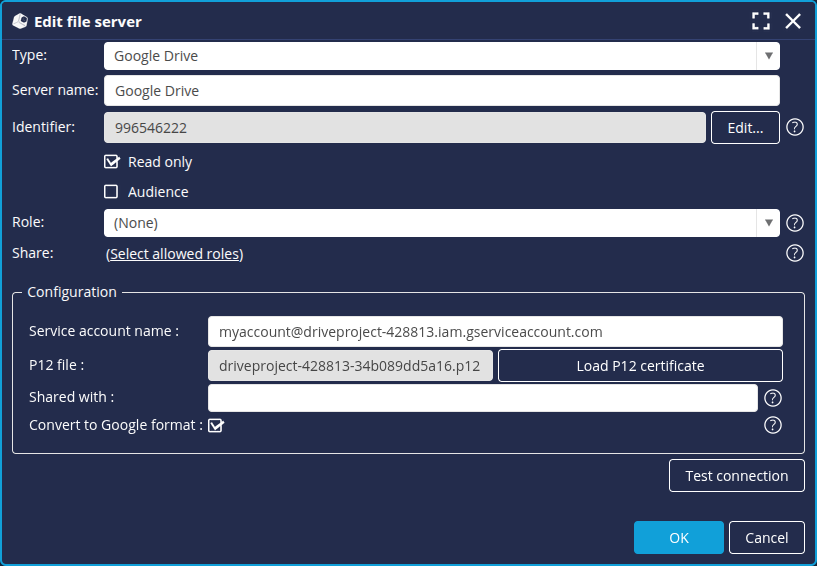
➡ The Add a file server box appears. - Fill in the fields as described in the Server configuration paragraph below.
Server configuration
Server name
Give your new Google Drive document server a name.
Configure Google Drive settings
| Service account | This is the identifier in the form of an email address retrieved when the account was created in the Google developers console. |
| .p12 file | This is the secret key in the form of a .p12 file generated and downloaded when the account was created in the Google developers console. Via the browser, you must first choose from the first drop-down list the document server on which your .p12 file is stored and from the second list choose the latter. |
| Shared with | In this field, we expect the email addresses of the people with whom the documents on this Google Drive server will be shared. These users will then receive a notification (by email) as soon as a new document is available on this server. These new documents will also be visible on their Google Drive account in the "Shared with me" section. You will need to separate each email address with a comma or semi-colon if there are multiple users. |
| Convert to Google format | If this option is selected, documents will always be filed in the corresponding Google format if possible (See appendix 1). If submission in Google format is not possible, the document will be submitted in its original format. |
Reminder:
A service account, even if you have created it, is not linked in any way to the Google Drive account of the Google Account you used to create it.
This service account is a Google Account in its own right and has its own Google Drive, Google Calendar, etc.
When you upload a document to a service account, it will land on the Google Drive of that service account and not on the Google Drive of the account you used to create it.
Possible actions
Via the File Manager, you can take action on the files on the Google Drive of the service account.
See the paragraph File manager for more information.
Possible conversions
| Type of file | Google format |
| doc | Google Docs |
| docx | |
| odt | |
| html | |
| rtf | |
| txt | |
| jpg | |
| png | |
| gif | |
| bmp | |
| xls | Google Sheets |
| xlsx | |
| ods | |
| csv | |
| tsv | |
| ppt | Google Slides |
| pptx | |
| odp |