
Alfresco
- Requirements
- Digdash user / Alfresco user
- Creating a new Alfresco file server
- Server configuration
- Possible actions
DigDash Enterprise allows you to retrieve files stored on an Alfresco account.
Requirements
- An Alfresco server (developments and tests were carried out with the (free) Community version of Alfresco)
- Alfresco administrator credentials (for server configuration)
- Knowledge (not extensive) of the Alfresco tree structure (for server configuration)
- The creation of one or more Alfresco users with the same user names defined in Digdash
Digdash user / Alfresco user
We assume in this document that the Digdash logged-in user also exists in Alfresco with the same username (login).
Creating a new Alfresco file server
You can create a new Alfresco File Server from the Studio:
- In the Studio, click the Managers button in the left sidebar, then select Servers.
➡ The Server URL Manager dialog box appears. - Click on the + button to the right of the search bar and then, in the menu that appears, select the type of server: Alfresco.
➡ The Add a file server box appears - Fill in the fields as described in the Server configuration section below.
Server configuration
Identifiers (Name / Password)
The user connected to Digdash (whoever it may be) will always be connected to the Alfresco server using the admin credentials.
URL
Specify the address of the Alfresco server and the port number if required.
File path
The path for the actions (defined below) should be specified as follows:
Site/Container/Uploaddirectory
Site and Container are mandatory
Uploaddirectory is optional
| Site/ | Container/ | Uploaddirectory |
| Site name | Space for sharing documents that will appear on the site ("Document Library" in most cases) http://docs.alfresco.com/5.1/concepts/library-intro.html////http://docs.alfresco.com/5.1/concepts/library-intro.html | Access path |
Table: Alfresco path model for performing actions
Example :
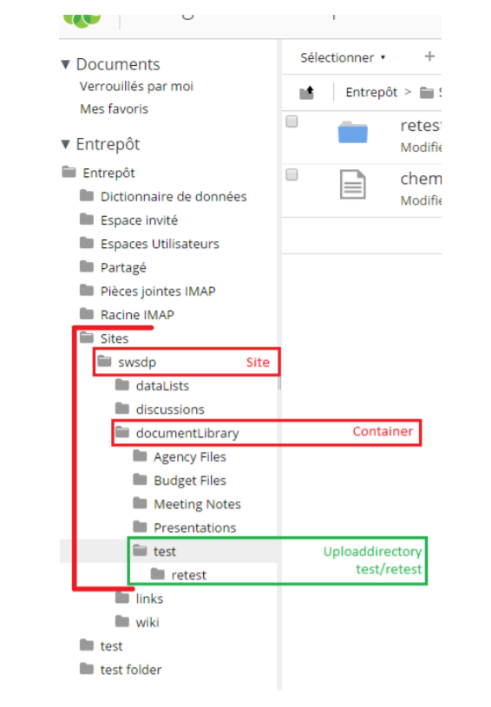
Example of an Alfresco tree structure for an example site (site named "swsdp")
Or the following path: swsdp/documentLibrary/test/retest
| Site/ | Container/ | Uploaddirectory |
| Site name | Space for sharing documents that will appear on the site ("Document Library" in most cases) http://docs.alfresco.com/5.1/concepts/library-intro.html////http://docs.alfresco.com/5.1/concepts/library-intro.html | Access path |
| swsdp/ | documentLibrary/ | test/retest |
Path to an Alfresco site, for example
Exploring sub-folders
You can limit the level of exploration from your document path.
By default, the document search is recursive and will explore all sub-folders.
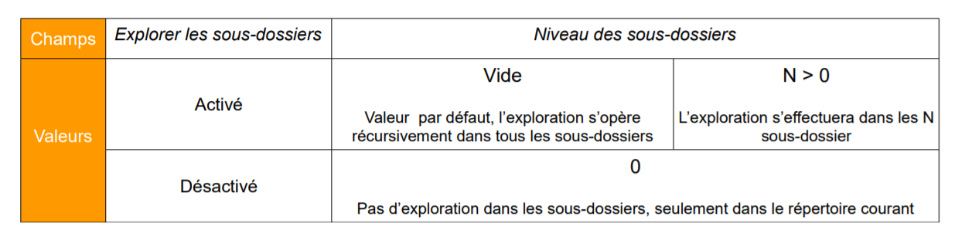
Table for exploring documents for the Alfresco connector
Access rights (limited)
Although you are always logged in as Admin on the Alfresco server, we have decided to restrict user rights (other than Admin) to a certain extent in line with Alfresco requirements.
| Full rights | |
| No rights | |
| Only by self | |
| Don't know |
| Consumer | Editor | Collaborator | Coordinator | Contributor | Manager | Admin | |
| View/Download | |||||||
| Rename | |||||||
| Delete | |||||||
| Upload | |||||||
| Upload new version (modify) |
Roles and permissions for documents on the Alfresco side
Thus, a visitor (uninvited user on the site, Consumer in Alfresco) will only be granted read and download rights.
We have arbitrarily chosen not to restrict the rights (on the Alfresco side) with regard to actions that would only be possible if the Digdash connected user were the creator of the document (orange boxes).
Possible actions
Via the File Manager , you can act on the files on the Alfresco server.
Consult the page File Manager for more details.