
Deployment of the audit module (DDAudit)
- Installing the module
- Configuring the DDAudit database
- Creating the named connection to the database
- Selecting the database in the data models
- Accessing DigDash Enterprise audit data
- Location of DDAudit database files
This document describes the installation of the audit module integrated into DigDash Enterprise. This module enables a system administrator to view the list of data cubes and Flows as well as the history of user sessions.
Installing the module
You can deploy the audit module from theDigdash Metadata Service:
- Launch the Studio.
- Click on the Managers button in the left-hand sidebar.
- In the box that appears, click on DigDash Metadata Service.
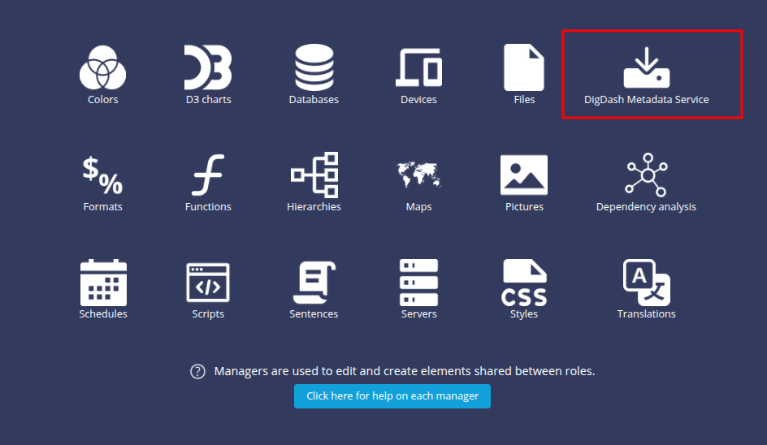
➡ The DigDash Metadata Service box appears.
- Select the New Audit Module component and click Install Now.
When the installation is complete, a success message is displayed - Click OK and then Close.
Items created during installation
A new DDAudit role containing the following elements is created:
- Pre-defined data models for creating visualisations of audit data
- Pre-defined flows: list of cubes, lists of flows and lists of user sessions
- A dashboard displaying audit data
Configuring the DDAudit database
You need to configure a DDAudit database to store audit data. We recommend using a MariaDB database. MySQL and PostgreSQL databases are also supported.
To do this
- From the home page, go to Configuration -> Server settings -> Database -> Audit data.
- Enter :
- The URL of the database
- The User and Database password.

You can also :
- delete old data: enter a date until which to delete the data in the Delete audit events until field.
- set the data retention period: enter the period in numbers of days in the Data retention period field.
Creating the named connection to the database
Once the database has been configured, you need to create the database connection. To do this:
- Display the Studio Managers tab.
- Click Databases.
- Click the + button to create a new database connection.
➡ The Edit Database Connection box appears. - Select the SQL type.
- Enter the name of the connection: DDAudit.
- Then enter your database configuration information.
- Leave the database restricted to the DDAudit role.
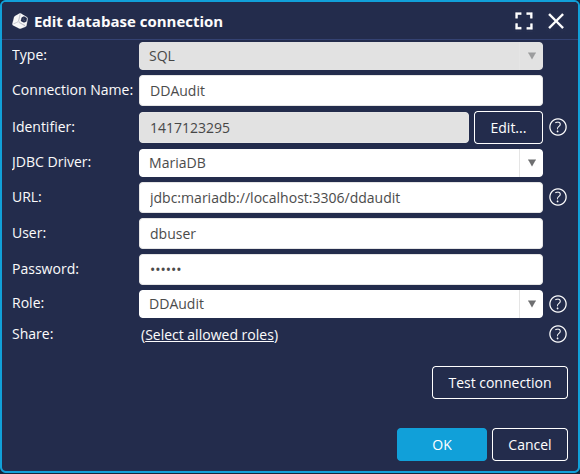
- Check that the connection works by clicking on the Test connection button.
- Click OK.
We will now select the database connection in the data models.
Selecting the database in the data models
To link the audit data templates to the database connection :
- In the Studio data templates panel, go to the DDAudit role tab.
- Edit the data models and select DDAudit from the Connection drop-down list.
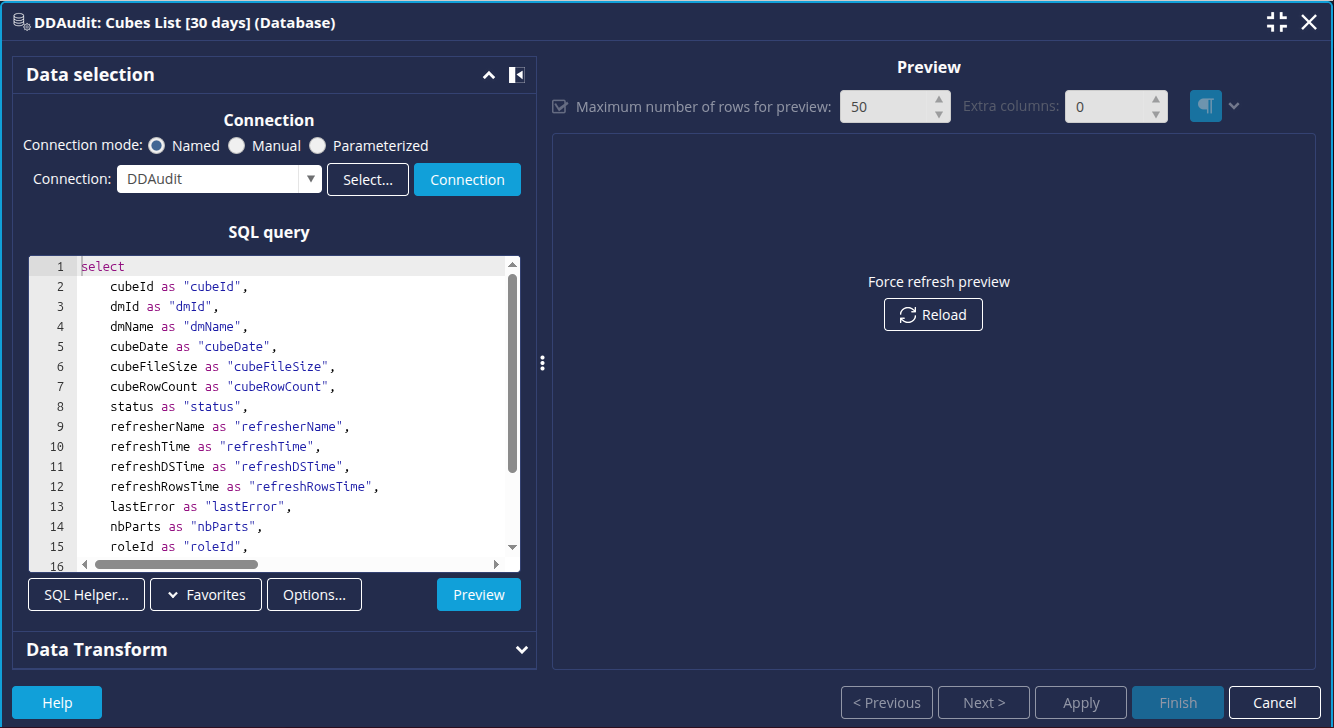
- Click Reload to refresh the preview.
- Click Finish.
Accessing DigDash Enterprise audit data
In order to view this information you need to add the DDAudit role to your DigDash Enterprise administrator or any other user you wish for this task.
From the Configuration -> Server Status page, start the audit services you wish to use (session audit service, cubes and flows, etc).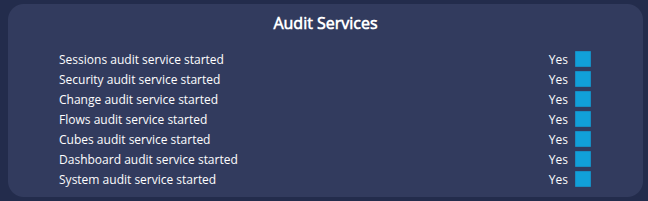
Predefined dashboards can be accessed directly from the Dashboard, in the DDAudit role.
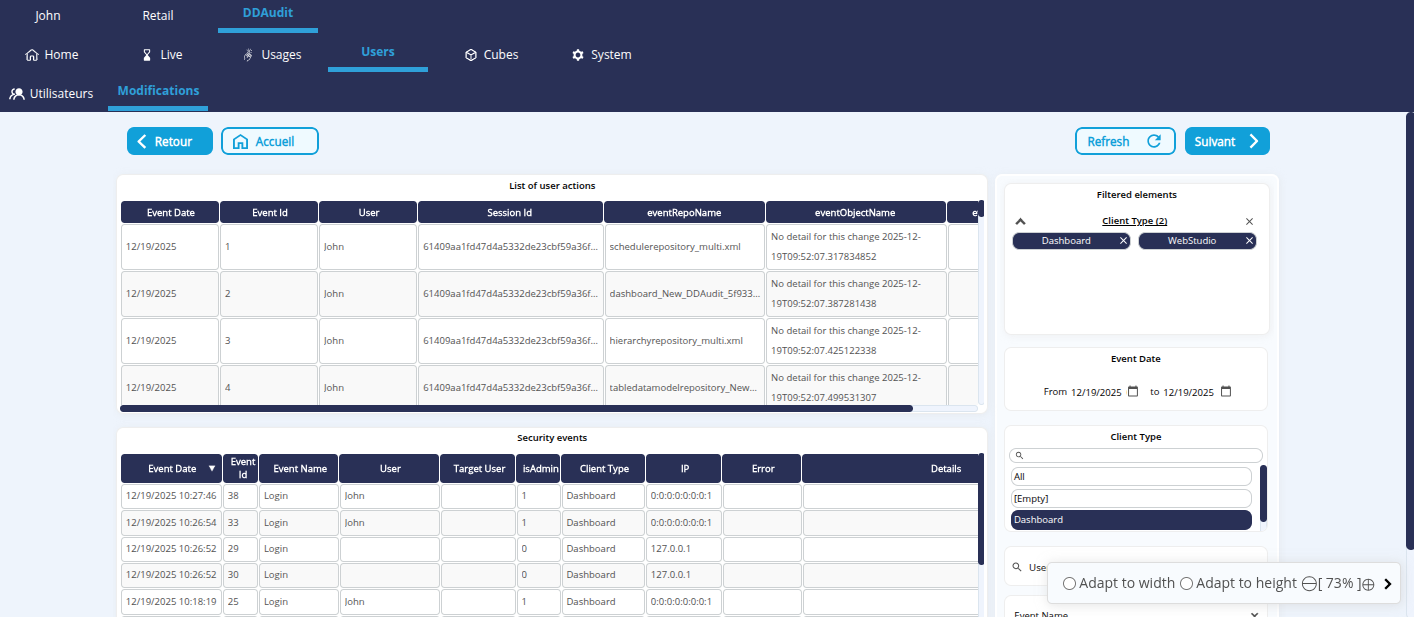
You can also create your own flows based on data models, or even new data models on the audit database.
Location of DDAudit database files
In some cases, you may need to change the location of DDAudit database files.
See the page Modifying the location of DDAudit database files for more information