
FTP(S)
- Requirements
- Creating a new FTP(S) file server
- Server configuration
- Active / passive mode
- FTP mode over TLS
- Possible actions
Requirements
- An FTP(S) server (example: FileZilla Server)
- Check your server settings so that you can apply them to the configuration of the FTP(S) client in Digdash
- Open the necessary ports so that Digdash can communicate with your FTP(S) server
- An externally visible IP address for a passive mode FTP connection (see below)
- In this document we will call :
- P: the FTP server port (default 21)
- PE: the explicit FTP port on TLS (by default P = PE = 21)
- PI: the implicit FTP port on TLS (default 990)
You will need to adapt to the ports you use if they are not the default ones.
Creating a new FTP(S) file server
You can create a new FTP(S) file server from the Studio.
- In the Studio, click the Managers button in the left-hand sidebar, then select Servers.
➡ The Server URL Manager dialog box appears. - Click on the + button to the right of the search bar and then, in the menu that appears, select the type of server: FTP or FTPS.
➡ The Add a file server box appears - Fill in the fields as described in the Server configuration paragraph below.
Server configuration
Server name
Give your new FTP(S) document server a name.
URL
Enter the IP address of your FTP(S) server in this field.
User document path
Digdash will browse the files from this path on the FTP(S) server. If empty, Digdash will browse from the root.
Exploring sub-folders
You can limit the level of exploration from your document path.
By default, the document search is recursive and will search all sub-folders.
| Fields | Browse subfolders | Subfolder level | |
| Values | Enabled | Empty Default value, recursive exploration of all sub-folders | N > 0 All N sub-folders will be searched |
| Off | 0 No exploration in sub-folders, only in the current directory | ||
Read only
Only reading is possible if this option is enabled.
Name
Enter your user name in this field.
Password
Enter your user's password in this field.
Active / passive mode
The notion of active and passive mode is extremely important when using FTP with firewalls:
Source: https://wiki.filezilla-project.org/Network_Configuration
Active mode
From the point of view of the firewall on the FTP server side, the following communication channels must be open to support FTP active mode:
- port P (21) from anywhere (the Client initiates the connection)
- port P (21) open to ports > 1023 (Server responds to Client command/control port)
- port P-1 (20) open to ports > 1023 (the Server initiates the data connection to the Customer's data port)
- port P-1 (20) from ports > 1023 (Client sends notification to Server data port)
Active mode options
By default, in active mode, the Client asks the operating system for the machine's IP address and an available port. This configuration will only work if you are directly connected to the Internet without a NAT router and have configured your firewall to allow incoming connections on ports > 1024.
If you have a NAT router, you will need to specify your external IP address as an option.
You can also limit the number of communication ports in active mode.
Passive mode (recommended)
From the point of view of the firewall on the FTP server side, the following communication channels must be open to support passive FTP mode:
- port P (21) from anywhere (the Client initiates the connection)
- port P (21) open to ports > 1023 (Server responds to Client command/control port)
- ports > 1023 from anywhere (the Client initiates the data connection to a random port specified by the Server)
- ports > 1023 open to ports > 1023 (Server sends notification (and data) to Client data port)
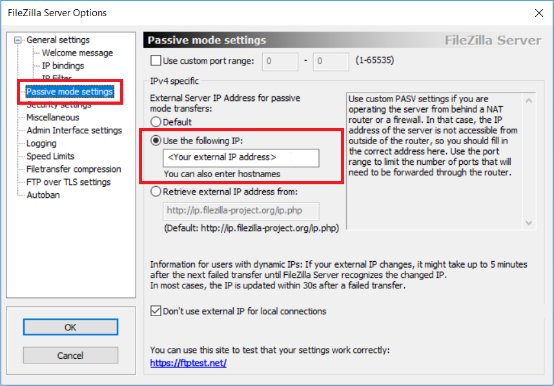
Particularly for passive mode, the FTP Client by default only sees the local IP address of the server machine, which is not accessible from the outside.
You will need to configure your FTP server's passive mode settings to specify an IP address that is visible from the outside. We'll use a FileZilla Server FTP server as an example to illustrate our point:
FTP mode over TLS
To work with a secure FTP server (FTPS), you need to select the required protocol in the configuration settings:
Source : www.attachmate.com
- Explicit FTP mode over TLS: By default, the FTP client establishes SSL/TLS connections using explicit security. To establish the SSL connection, explicit security requires the FTP Client to send a specific command (AUTH TLS) to the FTP server after establishing a connection. If the server responds correctly, the client begins TLS negotiation. The PE port used is that of the FTP server (21 by default).
- FTP mode implicit on TLS: When you select Implicit SSL/TLS connection, the FTP Client uses implicit security. Implicit security automatically starts with an SSL connection as soon as the FTP Client connects to the server. No AUTH TLS command is sent before TLS negotiation.
By default, the FTP Client uses port PI = 990 for implicit connections.
Possible actions
You can use the File Manager to take action on the files on the FTP(S) server.
See the page File Manager page for more details.